Removing orphaned vCLS VMs

I had an issue where I was removing datastores and was getting errors about the datastore still being in use or that it was waiting for VMs to be migrated off. It took me a while to realize there were references to vCLS VMs on the datastore. I had to log in as the vsphere administrator to see these and I could not delete them through normal means.

See https://kb.vmware.com/s/article/80472 “Retreat Mode Steps” to disable DRS in vcenter for the cluster with the orphaned VMs, which will remove the references, and then re-enable DRS. Pay attention to the cluster number, it should be in the form of domain-c1006

Apple’s Caching Server in a VM

Starting with MacOS 10.13 Apple’s Caching Server service, now called Content Caching, checks if the system is running in a VM. See this article for more details: https://support.apple.com/en-gb/HT207828

When attempting to start Content Caching on a Virtualized Mac OS you will get an error message:

% sudo AssetCacheManagerUtil activate
AssetCacheManagerUtil[655:5522] Failed to activate content caching: Error Domain=ACSMErrorDomain Code=5 "virtual machine" UserInfo={NSLocalizedDescription=virtual machine}

To get around this we have to suppress the VMM flag. See this archived project https://github.com/ofawx/VmAssetCacheEnable for more info. One way to accomplish this is to use OpenCore with Lilu and the RestrictEvents kernel extensions.

This is my first experience with OpenCore so I’m no expert.

  1. Install and launch https://github.com/corpnewt/MountEFI to the Desktop folder or somewhere similar.
  2. Enter “b” to mount the boot EFI partition. You should see an EFI mount point in the finder containing an EFI folder
  3. Follow https://forums.macrumors.com/threads/opencore-on-the-mac-pro.2207814/ to get a basic opencore setup. Start at “Install the basic components“. This was the easiest way I found to get to a working setup with OpenCore.
  4. Download the latest Lilu release from https://github.com/acidanthera/Lilu/releases and the latest RestrictEvents release from https://github.com/acidanthera/RestrictEvents/releases. Place the kext from each in the EFI/OC/Kexts folder in the EFI partition.
  5. Open the config file and under Kernel/Add replace </array> with this, which will include the 2 kexts we added:
		<array>
			<dict>
				<key>Arch</key>
				<string>Any</string>
				<key>BundlePath</key>
				<string>Lilu.kext</string>
				<key>Comment</key>
				<string></string>
				<key>Enabled</key>
				<true/>
				<key>ExecutablePath</key>
				<string>Contents/MacOS/Lilu</string>
				<key>MaxKernel</key>
				<string></string>
				<key>MinKernel</key>
				<string></string>
				<key>PlistPath</key>
				<string>Contents/Info.plist</string>
			</dict>
			<dict>
				<key>Arch</key>
				<string>Any</string>
				<key>BundlePath</key>
				<string>RestrictEvents.kext</string>
				<key>Comment</key>
				<string></string>
				<key>Enabled</key>
				<true/>
				<key>ExecutablePath</key>
				<string>Contents/MacOS/RestrictEvents</string>
				<key>MaxKernel</key>
				<string></string>
				<key>MinKernel</key>
				<string></string>
				<key>PlistPath</key>
				<string>Contents/Info.plist</string>
			</dict>
		</array>
  1. Add revpatch=asset to the existing NVRAM/Add/7C436110-AB2A-4BBB-A880-FE41995C9F82/boot-args key. This enables the Content Cache patch in the RestrictEvents kernel extension.
  2. Save the config and reboot the system.

You should now be able to turn on Content Cache from system preferences or the command line using the sudo AssetCacheManagerUtil activate command.

Cloning Content Cache VM and ServerGUID

We have one Content Cache server running but it would be nice to have more than one. One of the benefits of running in a VM is the ease of cloning machines. Make sure to refresh the ServerGUID on the cloned machine. Otherwise the service will not peer. This error will be in the logs: Ignoring server at 172.17.16.120 because it has my ServerGUID

Refreshing the ServerGUID:

  1. Stop the caching service via System Preferences or with the AssetCacheManagerUtil deactivate command.
  2. Generate a new GUID: sudo defaults write /Library/Preferences/com.apple.AssetCache.plist ServerGUID uuidgen
  3. Reboot the server (otherwise the UUID gets changed back).
  4. Start the caching service via System Preferences or with the AssetCacheManagerUtil activate command.

Troubleshooting tips:

  • Verify OpenCore is working by listing 3rd party extensions with kextstat | grep -v com.apple Lilu and RestrictEvents should be listed.
  • Show Log: Log stream --predicate 'subsystem == "com.apple.AssetCache"' --info

Printing from MacOS 12.1 to Windows Server 2022

Starting with MacOS 12.2 Apple started requiring encryption when connecting to SMB printers. This can be disabled by adding “?encryption=no” to the end of the printer URI string. MacOS 11.6.3 and 10.5.7 with Security Update 2022-001 are also affected.

Microsoft starting requiring encryption by default on September 14, 2021 and supports a registry key to disable encryption.

If you see “Unable to start Job” on your Mac before the versions mentioned above then set this registry key on the Print Server:

Add a new registry key: HKEY_LOCAL_MACHINE\SYSTEM\CurrentControlSet\Control\Print\RpcAuthnLevelPrivacyEnabled (type DWORD)
Set the new key value to 0.
Restart the Print Spooler service.

Re-ordering SSIDs on Mac with Munki

You might want to set your corporate network as the first preferred network on Mac OS. Unfortunately there is no built in command line tool that can do this. It can be done in python though with the CoreWLAN framework and the Objective-C Bridge. Unfortunately Apple has decided not to continue providing python on the Mac so we will need a third party python package. If you are using Munki to manage software then you are in luck! Munki’s included python package includes the Objective-C Bridge.

We will need two scripts to make this work, one to check if we should re-order the networks and one to actually do the work. In munki create a nopkg and include these scripts:

install-check:

#!/usr/local/munki/munki-python

# As written, this requires the following:
# - OS X 10.6+ (has been reported working through OS 12)
# - python 3.x
# - pyObjC (as such, recommended to be used with munki's python)

# Run with root
# exits 0 if order is wrong and 1 if order is right.

import objc, ctypes.util, os.path, collections
from Foundation import NSOrderedSet

# List of preferred SSIDs in priority order - edit/add/delete as needed
PreferredSSIDs = ["MySSID"]

def load_objc_framework(framework_name):
    # Utility function that loads a Framework bundle and creates a namedtuple where the attributes are the loaded classes from the Framework bundle
    loaded_classes = dict()
    framework_bundle = objc.loadBundle(framework_name, bundle_path=os.path.dirname(ctypes.util.find_library(framework_name)), module_globals=loaded_classes)
    # Exclude class entries that start with an underscore
    loaded_classes = dict(x for x in loaded_classes.items() if (not x[0].startswith('_')))
    return collections.namedtuple('AttributedFramework', loaded_classes.keys())(**loaded_classes)

# Load the CoreWLAN.framework (10.6+)
CoreWLAN = load_objc_framework('CoreWLAN')

# Load all available wifi interfaces
interfaces = dict()
for i in CoreWLAN.CWInterface.interfaceNames():
    interfaces[i] = CoreWLAN.CWInterface.interfaceWithName_(i)

# Repeat the configuration with every wifi interface
for i in interfaces.keys():
    # Grab a mutable copy of this interface's configuration
    configuration_copy = CoreWLAN.CWMutableConfiguration.alloc().initWithConfiguration_(interfaces[i].configuration())
    # Find all the preferred/remembered network profiles
    profiles = list(configuration_copy.networkProfiles().array())
    # Grab all the SSIDs, in order
    SSIDs = [x.ssid() for x in profiles]
    # Loop through PreferredSSIDs list and mathces the order of preferred networks
    for x in range(len(PreferredSSIDs)):
      if (PreferredSSIDs[x] != profiles[x].ssid()):
        exit(0)

exit(1)

post-install:

#!/usr/local/munki/munki-python

# As written, this requires the following:
# - OS X 10.6+ (has been reported working through OS 12)
# - python 3.x
# - pyObjC (as such, recommended to be used with munki's python)

# Run with root

import objc, ctypes.util, os.path, collections
from Foundation import NSOrderedSet

# List of preferred SSIDs in priority order - edit/add/delete as needed
PreferredSSIDs = ["MySSID"]

def load_objc_framework(framework_name):
    # Utility function that loads a Framework bundle and creates a namedtuple where the attributes are the loaded classes from the Framework bundle
    loaded_classes = dict()
    framework_bundle = objc.loadBundle(framework_name, bundle_path=os.path.dirname(ctypes.util.find_library(framework_name)), module_globals=loaded_classes)
    # Exclude class entries that start with an underscore
    loaded_classes = dict(x for x in loaded_classes.items() if (not x[0].startswith('_')))
    return collections.namedtuple('AttributedFramework', loaded_classes.keys())(**loaded_classes)

# Load the CoreWLAN.framework (10.6+)
CoreWLAN = load_objc_framework('CoreWLAN')

# Load all available wifi interfaces
interfaces = dict()
for i in CoreWLAN.CWInterface.interfaceNames():
    interfaces[i] = CoreWLAN.CWInterface.interfaceWithName_(i)

# Repeat the configuration with every wifi interface
for i in interfaces.keys():
    # Grab a mutable copy of this interface's configuration
    configuration_copy = CoreWLAN.CWMutableConfiguration.alloc().initWithConfiguration_(interfaces[i].configuration())
    # Find all the preferred/remembered network profiles
    profiles = list(configuration_copy.networkProfiles().array())
    # Grab all the SSIDs, in order
    SSIDs = [x.ssid() for x in profiles]
    # Loop through PreferredSSIDs list in reverse order sorting each entry to the front of profiles array so it
    # ends up sorted with PreferredSSIDs as the first items.
    # Order is preserved for other SSIDs, example where PreferredSSIDs is [ssid3, ssid4]:
    #    Original: [ssid1, ssid2, ssid3, ssid4]
    #   New order: [ssid3, ssid4, ssid1, ssid2]
    for aSSID in reversed(PreferredSSIDs):
        profiles.sort(key=lambda x: x.ssid() == aSSID, reverse=True)
    # Now we have to update the mutable configuration
    # First convert it back to a NSOrderedSet
    profile_set = NSOrderedSet.orderedSetWithArray_(profiles)
    # Then set/overwrite the configuration copy's networkProfiles
    configuration_copy.setNetworkProfiles_(profile_set)
    # Then update the network interface configuration
    result = interfaces[i].commitConfiguration_authorization_error_(configuration_copy, None, None)

Renewing NDES Certificates

If your clients are not able to get certificates from your NDES server then you might have expired NDES certificates.

confirm this by going to https://ndesmydomain.org/CertSrv/mscep_admin/ and see a 500 error.

See entries on your NDES server Application log like:

The Network Device Enrollment Service cannot retrieve one of its required certificates (0x80070057). The parameter is incorrect.

Look in the local machine certificate store and find that 2 certificates with the CEP Encryption and Exchange Enrollment Agent (Offline request) are expired.

First copy the subject from your expired certificate. It should be in DN form (E=email,CN=yourserver-MSCEP-RA, etc)

The CEP Encryption Template is easy, just right click and either request new or renew the certificate. Supply the Subject when asked. The new certificate should appear in your Certificates list.

The Enrollment Agent certificate is a user certificate and so cannot be renewed through mmc without jumping through a lot of hoops, so we can use certutil.

create a folder and place a txt file called newEACert.txt or something similar with these contents:

[Version]
Signature="$Windows NT$"
[NewRequest]
MachineKeySet=TRUE
Subject="
<Your Subject>"
Exportable = TRUE
[RequestAttributes]
CertificateTemplate = "EnrollmentAgentOffline"

Run a shell as administrator, enter the directory you created and run these commands:

CertReq.exe -New newEACert.txt Certnew.req
CertReq.exe -Submit Certnew.req Certnew.cer
CertReq.exe -Accept Certnew.cer

You should now see the Exchange Enrollment Certificate in your store.

reset iis iisreset and refresh the mscep_admin page and you should no longer see the 500 error. Client should now be able to get certificates from NDES.

7.0U2 hosts disconnect and generally lock up

If you see Hosts that are booting off of usb on 7.0u2 that go Non-Responsive, or where vmotion doesn’t work or they just generally lock up, then updated them to the latest 7.0 release. According to https://kb.vmware.com/s/article/83963 a race condition causes this behavior and was fixed in 7.0U2c

Non-Responsive Host

This can also be seen when log listing /vmfs/volumes on an ssh session:

Long Listing shows missing boot banks

To temporarily fix this issue reboot the host.

IOS Certificate based wifi authentication in Mosyle

Here is how to setup a client profile in Mosyle to authenticate Wifi against MS Network Policy Server (NPS) using certificates automatically obtained from MS Network Device Enrollment Services (NDES) using Simple Certificate Enrollment Protocol (SCEP). Not sure where the “simple” part is…and I don’t want to see the “hard” version!

Prepare

  • Create a service account in Active Directory that will request certificates.
  • Deploy Server for CA role or use existing.
  • Deploy Server for NDES role.

Part 1: The Certificate Authority

  • You can use an existing or install a new certificate authority role. If starting new then install the CA role from add remove features. On the configure screen just add the CA role. The ndes role will be on a separate server.
  • MS CA defaults to 2 year max certificate duration. To increase this increase ValidityPeriodUnits at [HKEY_LOCAL_MACHINE\SYSTEM\ControlSet001\services\CertSvc\Configuration\] and restart the CA service

Part 2: The certificate template:

Open Certificate Template Console from the Certificate Authority console and duplicate the user Template. Call it something meaningful, like “NDES Template”. You’ll need to remember that later.

Configure your new certificate template to look like these screens, be sure to add your service user on the security tab with read and enroll rights.

Part 3: The NDES Server

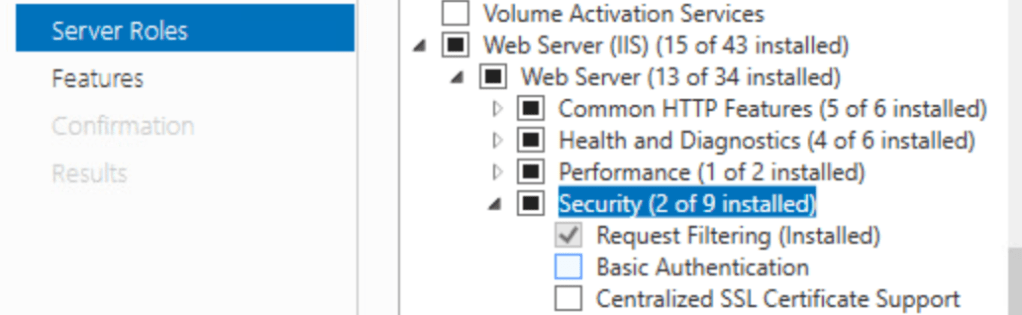
Again install the certificate authority role from roles and features, but when asked to configure the role only install the NDES portion. Accept the defaults for additional services to add and add the Request filtering feature under IIS>Security:

  • Add the service account to the IIS_IUSR group
  • Important!: Log the NDES server in once as the service account
  • Set the SPN of the service account:
    • setspn -s http/<DNS name of the computer that hosts the NDES service> <Domain name>\<NDES Service account name>
    • ex: setspn –s http/Server01.contoso.com contoso\NDESService
  • Complete the NDES setup from Server Manager
  • Registry Changes:
    • Add your NDES template Name (remove the spaces if there are any).
    • Add DisableRenewalSubjectNameMatch (can’t remember why that was necessary…you look it up!)
    • Set UseSinglePassword to 1. This stops the rolling of the challenge password, which Mosyle does not support
      • You may need to set “Load User Profile” to True in the Advanced Settings of the SCEP Application Pool in IIS
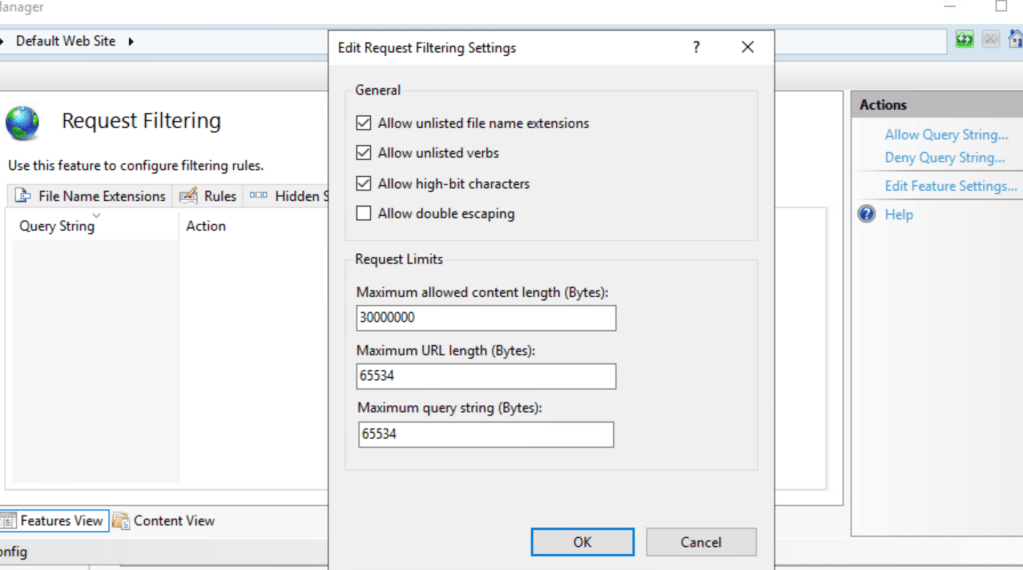
  • Increase the url length in IIS and Registry:
  • Acquire a Client And Server authentication certificate form your CA and bind your iis site to it. These can be separate or combined.

Part 4: Mosyle Configuration

This will all be configured under Multi-CertWiFi

  • Add a new profile and give it a name.
  • You will need at least 3 profiles inside of this profile container:
    • Certificate
      • This one is easy, just add the root cert (no key, export der in pem format from ca) so the certs are trusted
    • SCEP
      • Your SCEP url is something like http[s]://ndes.domain.com/certsrv/mscep/mscep.dll
      • Subject: CN=%FullName%
      • SAN Type: DNS Nme
      • SAN name: blank
      • NT Principal: %UserId%@domain.com
      • Challange: Obtain from http[s]://ndes.domain.com/CertSrv/mscep_admin/
        • If the reg keys above were set this will stay static, otherwise it will rotate every 60 minutes or after any successful certificate registration
        • Mosyle does not support obtaining the rolling code, so we use static.
      • Fingerprint: Also from http[s]://ndes.domain.com/CertSrv/mscep_admin/
    • WiFi

Part 5: NPS

I had an existing NPS server so I had a head start there, here are some screenshots that might help. Also check the events in the NAP screen in server manager for relevant events.

Make sure to edit the EAP type and bind it to the correct certificate.

Conclusion:

I think that’s about it. Here are some resources that I followed: